How to Set Parental Control on Wireless Router for a Safer Internet Experience
Introduction
In today's digital age, it's essential to provide a safe online environment for children and teenagers. One of the most effective ways to do this is by setting up parental controls on your wireless router. These controls allow you to manage and restrict internet access to ensure that your family's online experience is both safe and appropriate. In this article, we'll provide a step-by-step guide on how to set up parental controls on your wireless router and explore various modern home routers with built-in parental controls.Benefits of Parental Controls on Wireless Router
Parental controls on wireless routers offer a reliable solution for managing your home network and keeping your family connected. These controls help you customize internet access, providing peace of mind as you create a safer online environment for everyone in your household. With parental controls, you can:- Block websites and restrict access to certain content
- Set time limits for internet use and schedule internet bedtimes
- Assign devices to family members and restrict internet access
- Monitor and restrict online activity to prevent exposure to inappropriate content
Choosing the Right Router with Parental Controls
Not all routers have built-in parental controls, so it's essential to choose a router that offers these features. Some of the most popular routers with parental controls include:- ASUS: RT-AC66U and RT-AC56U models
- TP-Link: Archer series with built-in parental controls
- NETGEAR: Nighthawk and Orbi series with parental controls
- Linksys: EA series with parental controls
Setting Up Parental Controls on Wireless Router
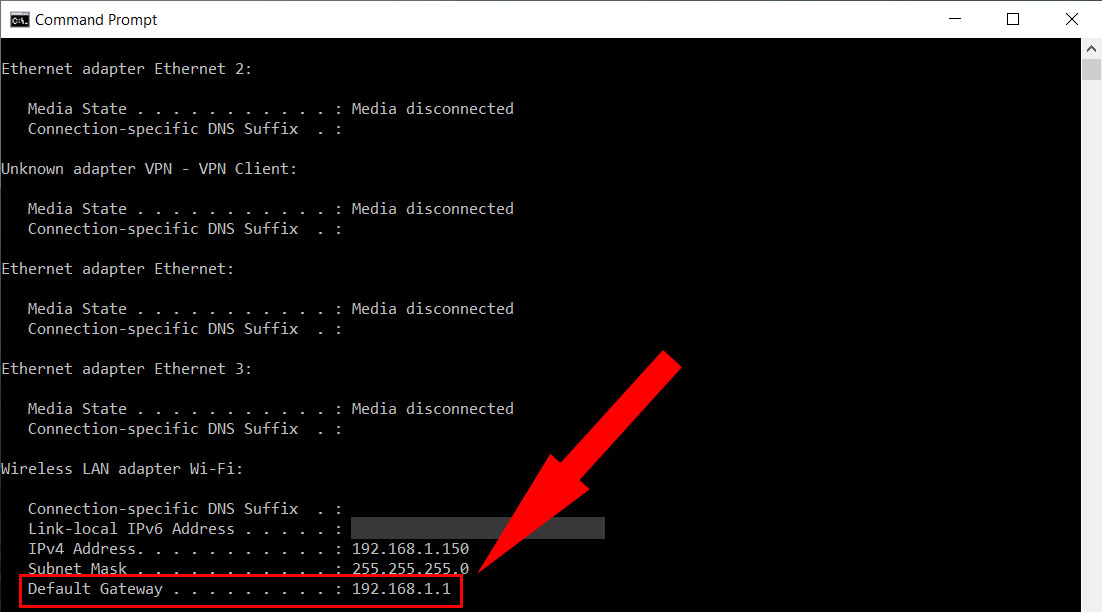
To set up parental controls on your wireless router, follow these steps:Step 1: Access your router's settings page by typing the router's IP address in your web browser. The default IP address is usually 192.168.0.1 or 192.168.1.1.
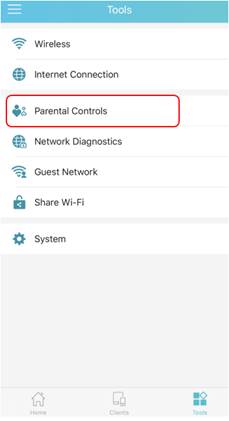
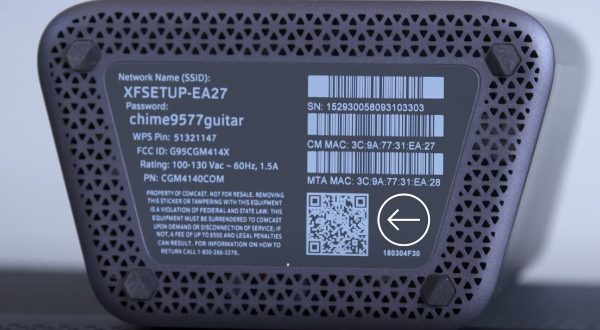
Step 2: Log in to your router using the admin username and password. You can find this information in your router's manual or on the manufacturer's website.
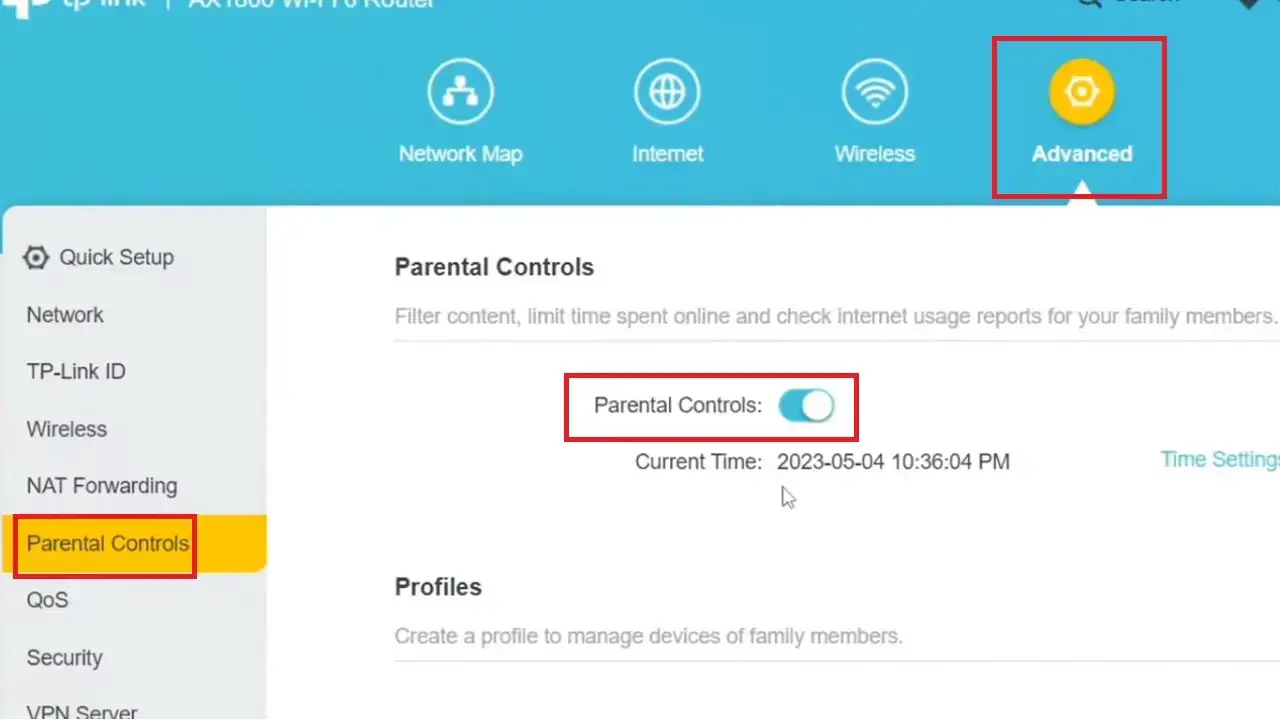
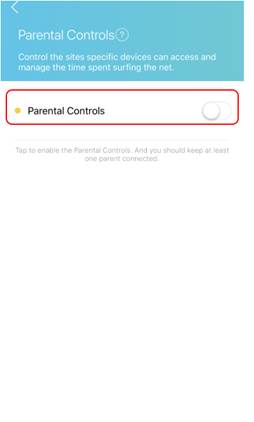
Step 3: Look for the parental controls section and enable the feature. The steps may vary depending on your router's model and firmware.
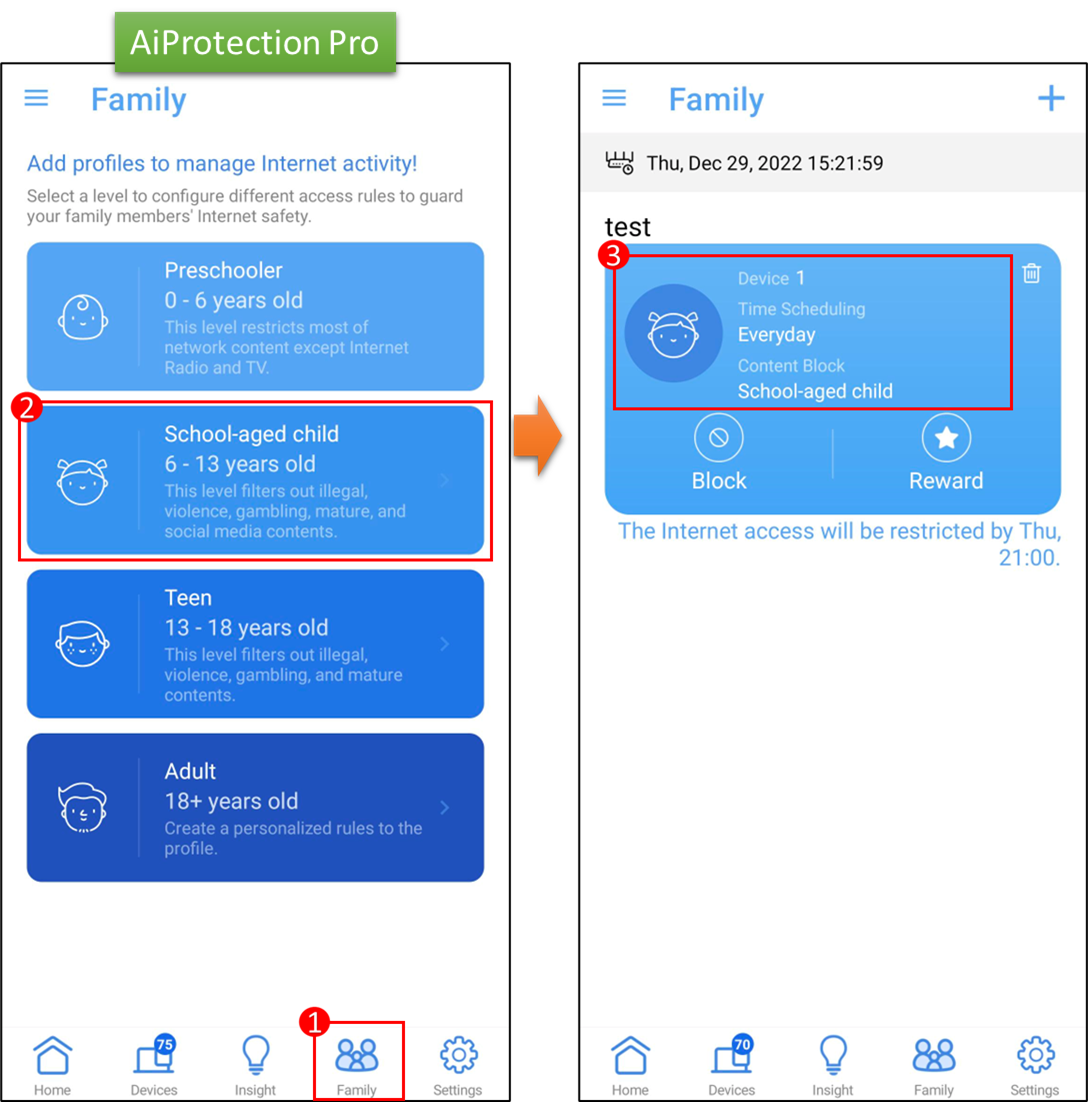
Step 4: Set up the parental controls by creating profiles for family members, assigning devices, and setting time limits and internet access restrictions.
Popular Routers with Parental Controls
Here are some popular routers with built-in parental controls:- TP-Link Archer AX3000 Pro: Offers advanced parental controls, including time limits and website blocking
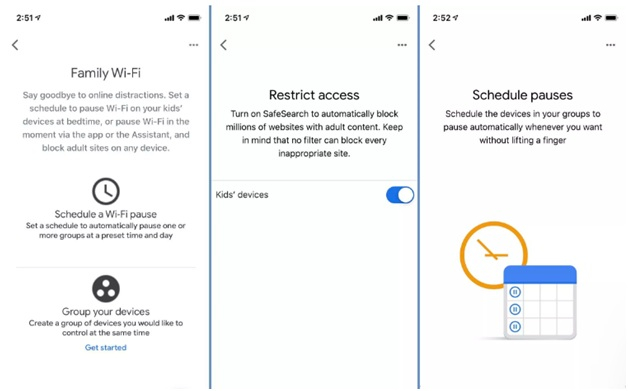
- Nest WiFi Router: Provides parental controls through the Nest app, allowing you to schedule internet bedtimes and restrict access to certain content
- Netgear Nighthawk R7000: Offers parental controls through the Netgear Genie app, allowing you to schedule internet access and block websites
- Linksys EA7500: Provides parental controls through the Linksys Smart Wi-Fi app, allowing you to schedule internet access and block websites


![[Wireless Router] How to set up Parental Controls? (WebGUI)](https://static0.makeuseofimages.com/wordpress/wp-content/uploads/2021/12/TP-Link-Parental-Control-Router-AC1750-2.jpg "[Wireless Router] How to set up Parental Controls? (WebGUI)")