Setup D Link Router As Access Point: A Comprehensive Guide
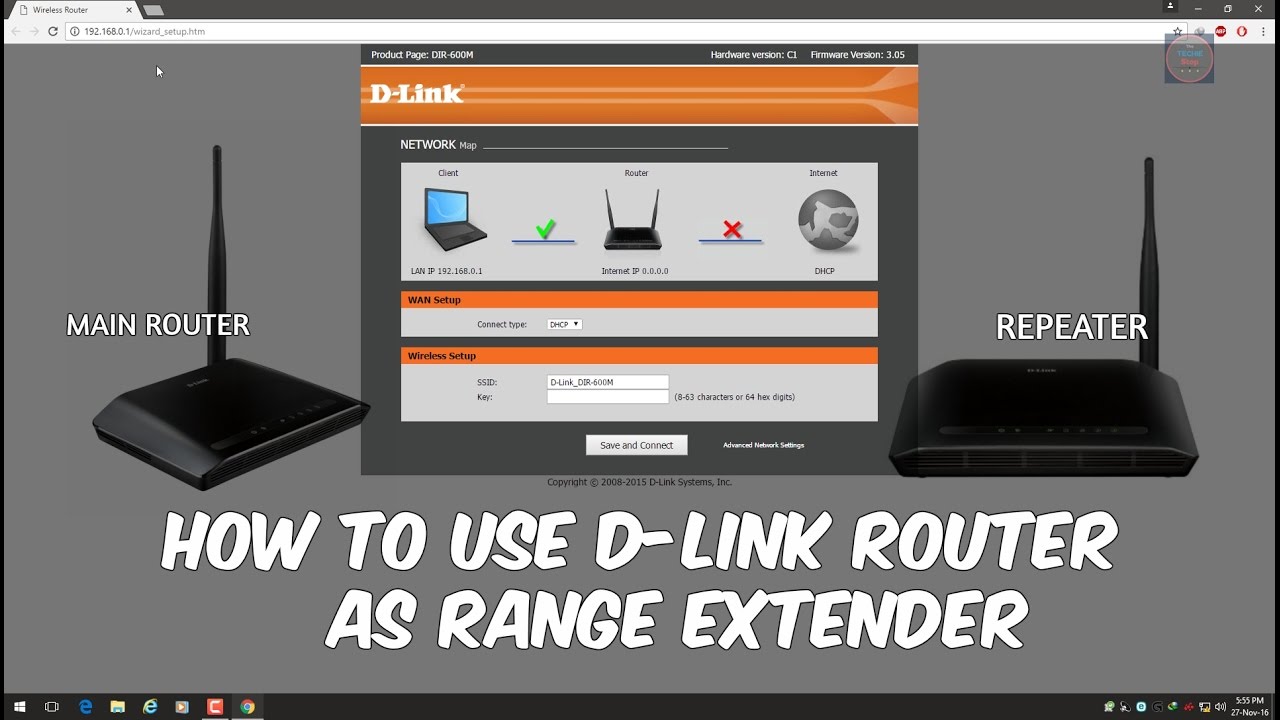
If you have a D-Link router at home that you're no longer using as your primary router, you can turn it into an access point to extend your Wi-Fi network coverage. In this article, we will guide you through the process of setting up your old D-Link router as a wireless access point.
Why Setup a D Link Router as an Access Point?
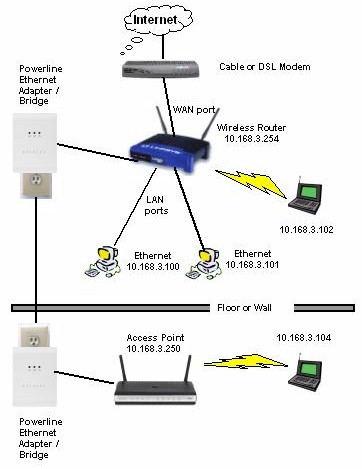
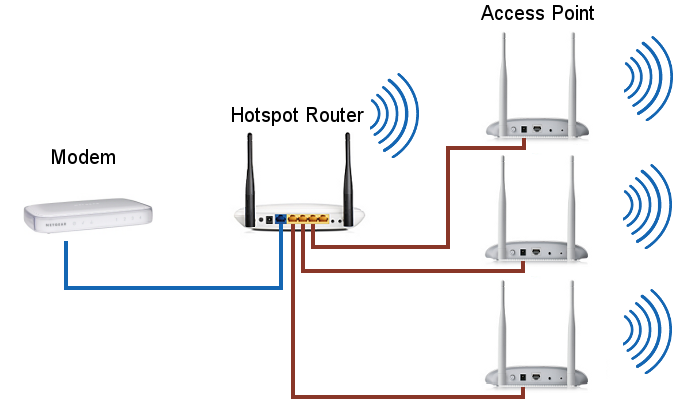
An access point is a networking device that allows client devices to connect wirelessly to a local area network. By setting up your old D-Link router as an access point, you can transform your existing wired network into a wireless network and extend your network coverage. This is especially useful in areas where your main router's Wi-Fi signal is weak or unavailable.
Step 1: Connect the D Link Router to Your Computer
First, connect the D-Link router you want to turn into an access point to your computer using an Ethernet cable. This will allow you to access the router's web-based configuration page.
Step 2: Login to the Router's Configuration Page
Launch a web browser and visit the following router configuration page: http://192.168.0.1. You will be prompted to enter the admin username and password. The default credentials are usually printed on the underside of the router or in the user manual.
Step 3: Disable the DHCP Server
Once you're logged in, navigate to the LAN settings and disable the DHCP server. This will prevent the router from assigning IP addresses to devices on the network.
Step 4: Set the Router to Access Point Mode
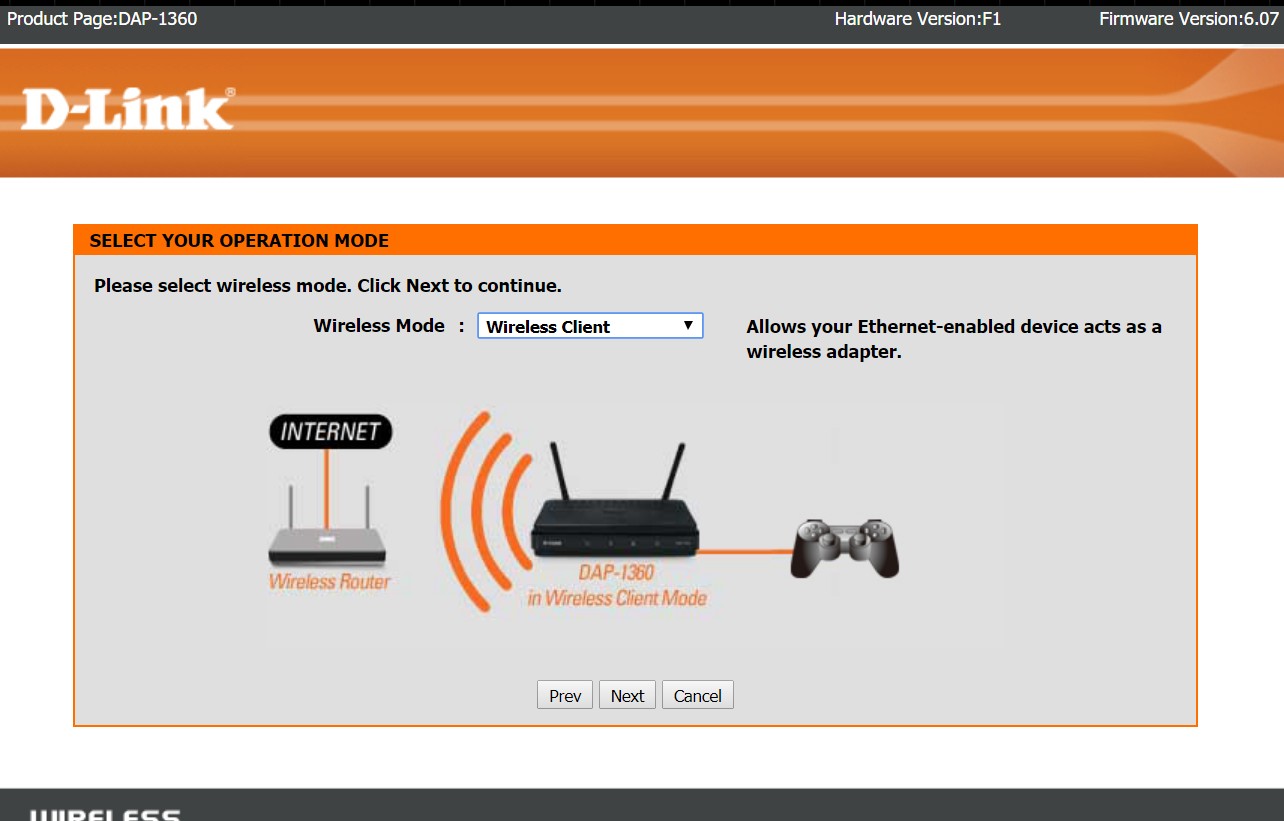
Look for the Operation Mode or AP Mode option and set it to Access Point. This will allow the router to function as an access point, extending your wireless network coverage.
Step 5: Configure the Access Point Settings

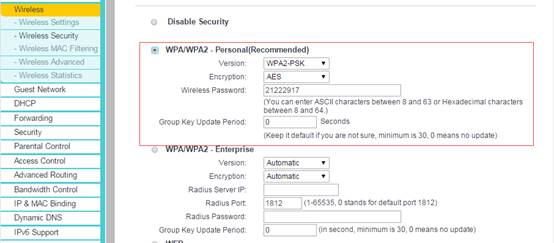
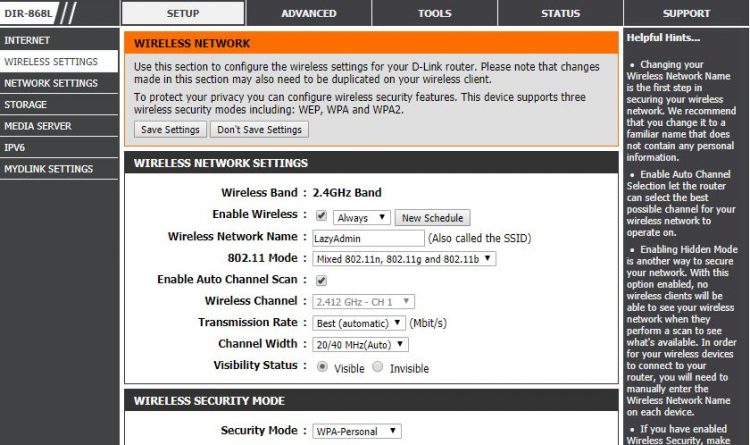
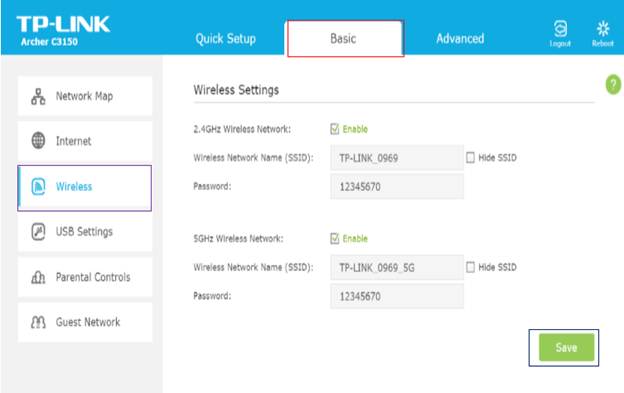
Configure the access point settings according to your needs. You can set the channel, band, and SSID (network name) as desired. Make sure to save the changes.
Step 6: Connect the Access Point to Your Main Router
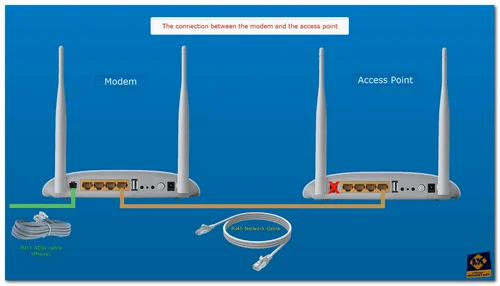
Connect the access point (your old D-Link router) to your main router using an Ethernet cable. This will establish a connection between the two devices and allow devices to connect to the main router through the access point.
Benefits of Setting Up a D Link Router as an Access Point
- Extends Wi-Fi network coverage
- Transforms existing wired network into a wireless network
- Improves network signal strength and reliability
- Allows devices to connect wirelessly to the main router
Common Issues and Troubleshooting
Some common issues you may encounter when setting up a D-Link router as an access point include:
- Connection issues between the access point and main router
- Difficulty setting up the access point settings
- Devices unable to connect to the access point
Resolve these issues by checking the connection between the access point and main router, ensuring that the access point settings are correct, and restarting the devices if necessary.
Conclusion
Setting up a D-Link router as an access point is a straightforward process that can greatly improve your Wi-Fi network coverage and signal strength. By following the steps outlined in this article, you can transform your old D-Link router into a valuable addition to your home network.



![[Wireless Router] How to set up access point (AP) mode?](https://static.tp-link.com/image004_1574665444906e.jpg "[Wireless Router] How to set up access point (AP) mode?")