Access Point Setup On TP-LINK Archer C9: A Comprehensive Guide
Are you looking to expand your wireless network coverage by turning your TP-Link Archer C9 router into an access point? In this article, we will guide you through the process of setting up your TP-Link Archer C9 as an access point, ensuring seamless internet connectivity and improved network performance.
Understanding the TP-Link Archer C9
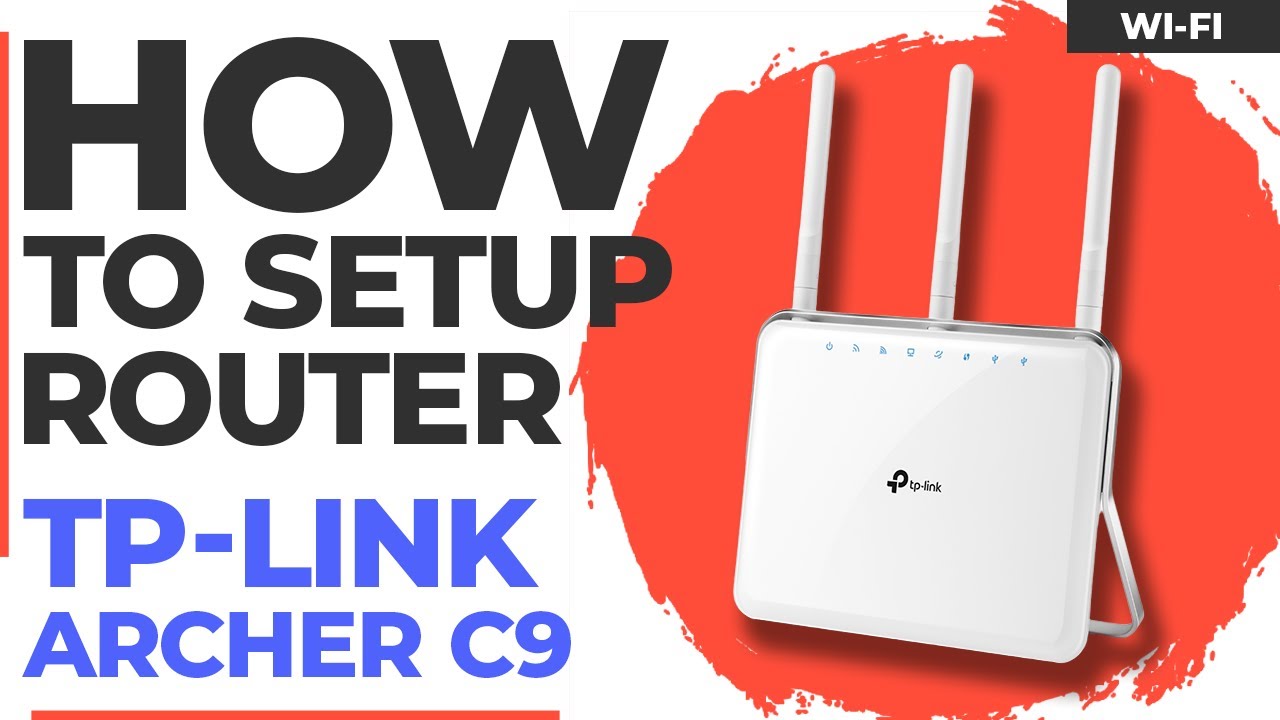
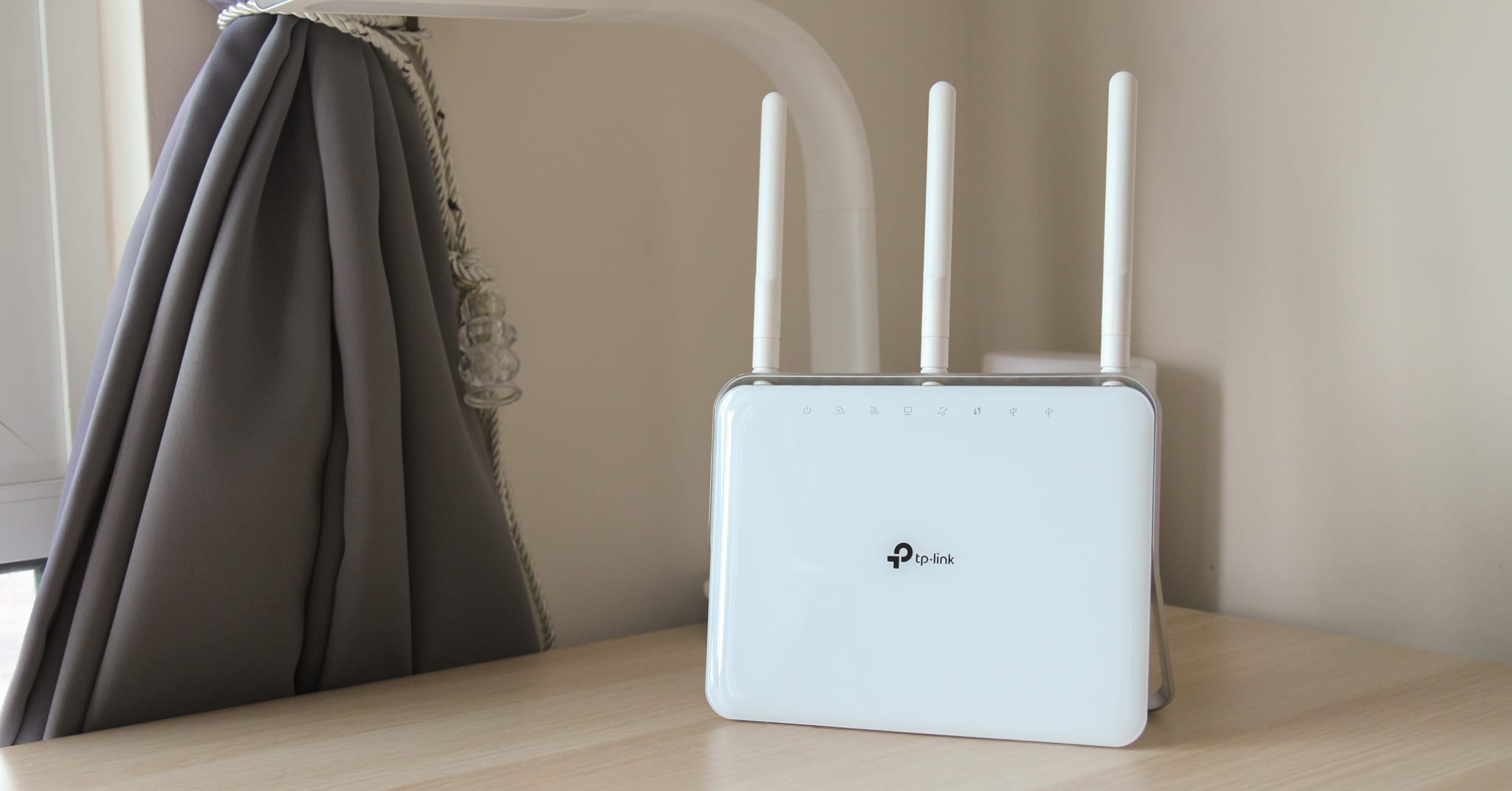
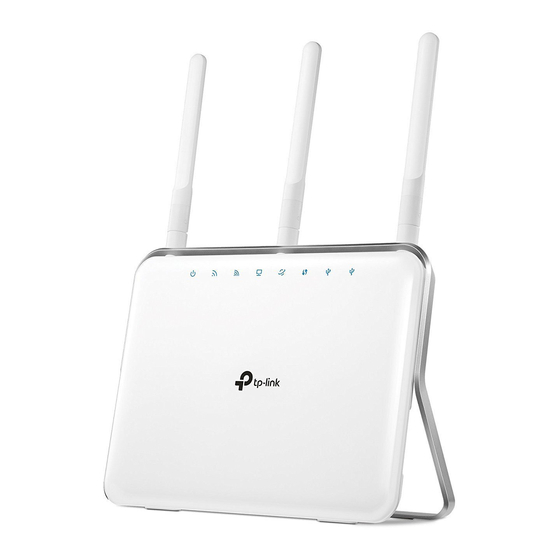
The TP-Link Archer C9 is a powerful wireless router that offers fast speeds, excellent coverage, and advanced features. With its dual-band Wi-Fi capability, the Archer C9 can support both 2.4GHz and 5GHz frequencies, making it an ideal choice for streaming, gaming, and everyday internet use.
Access Point Mode on TP-Link Archer C9
The access point mode on the TP-Link Archer C9 allows you to transform your wired connection into a wireless network, extending your existing network coverage and improving connectivity. By setting up your Archer C9 as an access point, you can enjoy a stronger and more reliable wireless signal, perfect for large homes, offices, or commercial establishments.
Prerequisites for Access Point Setup
Before setting up your TP-Link Archer C9 as an access point, ensure that you meet the following prerequisites:
- You have a TP-Link Archer C9 router.
- You have a wired connection (Ethernet cable) to connect the router to your main router or network switch.
- You have a computer or device connected to the same network as the TP-Link Archer C9.
- You have the latest firmware installed on the TP-Link Archer C9.
Step-by-Step Access Point Setup on TP-Link Archer C9
Here's a step-by-step guide to setting up your TP-Link Archer C9 as an access point:
Method 1: Using the Web Interface
1. Connect to the TP-Link Archer C9 using a wired Ethernet cable.
2. Open a web browser and type the IP address of the TP-Link Archer C9 (usually 192.168.0.1).
3. Log in to the web interface using the administrator username and password (default is admin/admin).
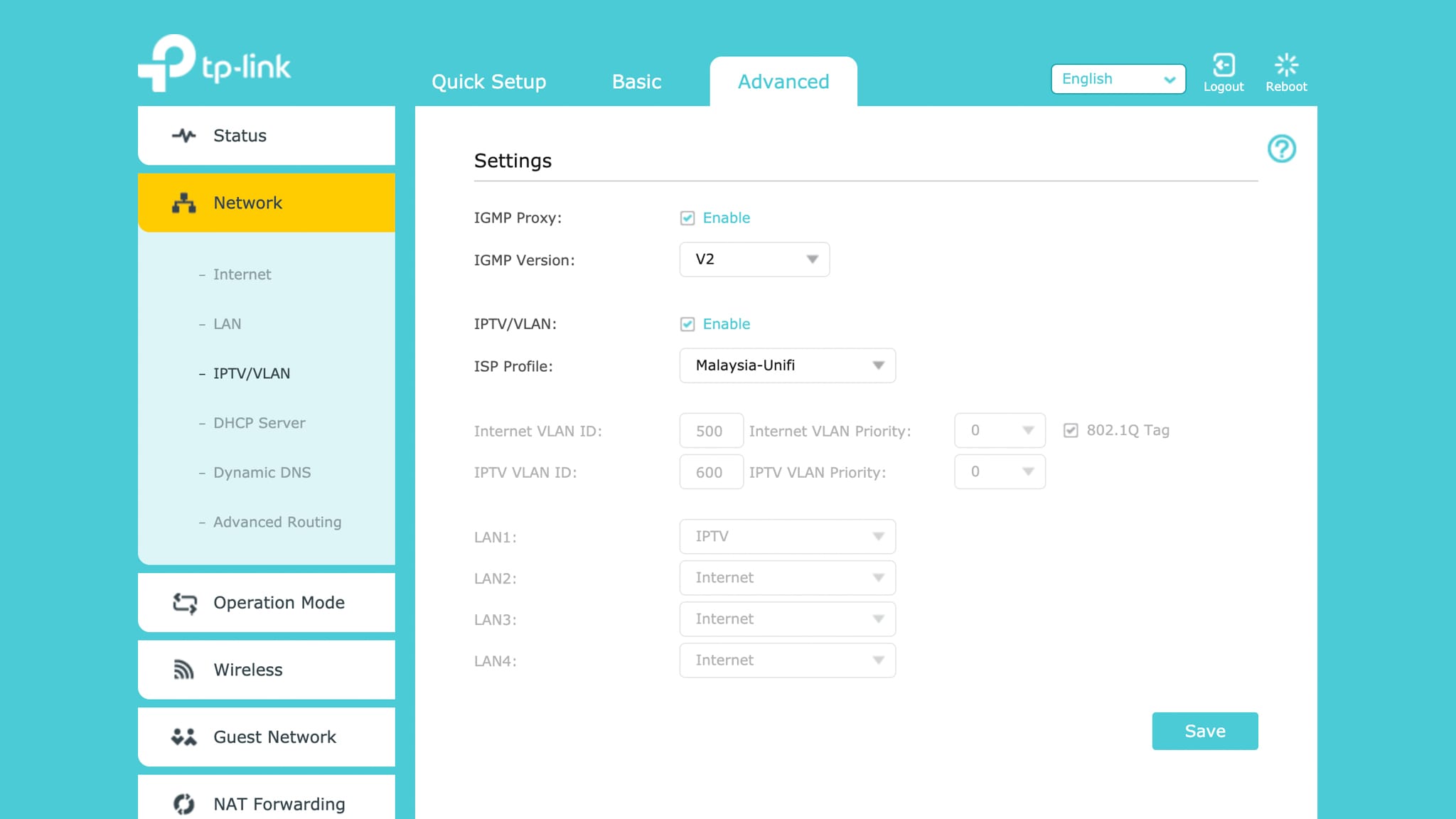
4. Navigate to the "Advanced Settings" section and click on "Wireless Settings."
5. Select "Access Point Mode" from the drop-down menu and click "Apply."
6. Configure the wireless settings, including the SSID, channel, and security settings.
7. Save the changes and reboot the TP-Link Archer C9.
Method 2: Using the Tether App
1. Download and install the TP-Link Tether app on your mobile device.
2. Connect to the TP-Link Archer C9 using a wired Ethernet cable.
3. Open the Tether app and select the TP-Link Archer C9 from the list of available devices.
4. Tap on "Advanced Settings" and then "Wireless Settings."
5. Select "Access Point Mode" from the drop-down menu and tap "Apply."
6. Configure the wireless settings, including the SSID, channel, and security settings.
7. Save the changes and reboot the TP-Link Archer C9.
Conclusion
By following these steps, you can easily set up your TP-Link Archer C9 as an access point, extending your wireless network coverage and improving connectivity. Remember to configure the wireless settings, including the SSID, channel, and security settings, to ensure seamless internet connectivity.
Additional Resources
For more information on the TP-Link Archer C9 and its features, refer to the user manual or the TP-Link website. You can also watch the setup video or consult the online community forum for any questions or concerns.
TP-Link Archer C9 Specifications
The TP-Link Archer C9 is a wireless dual-band gigabit router that supports:
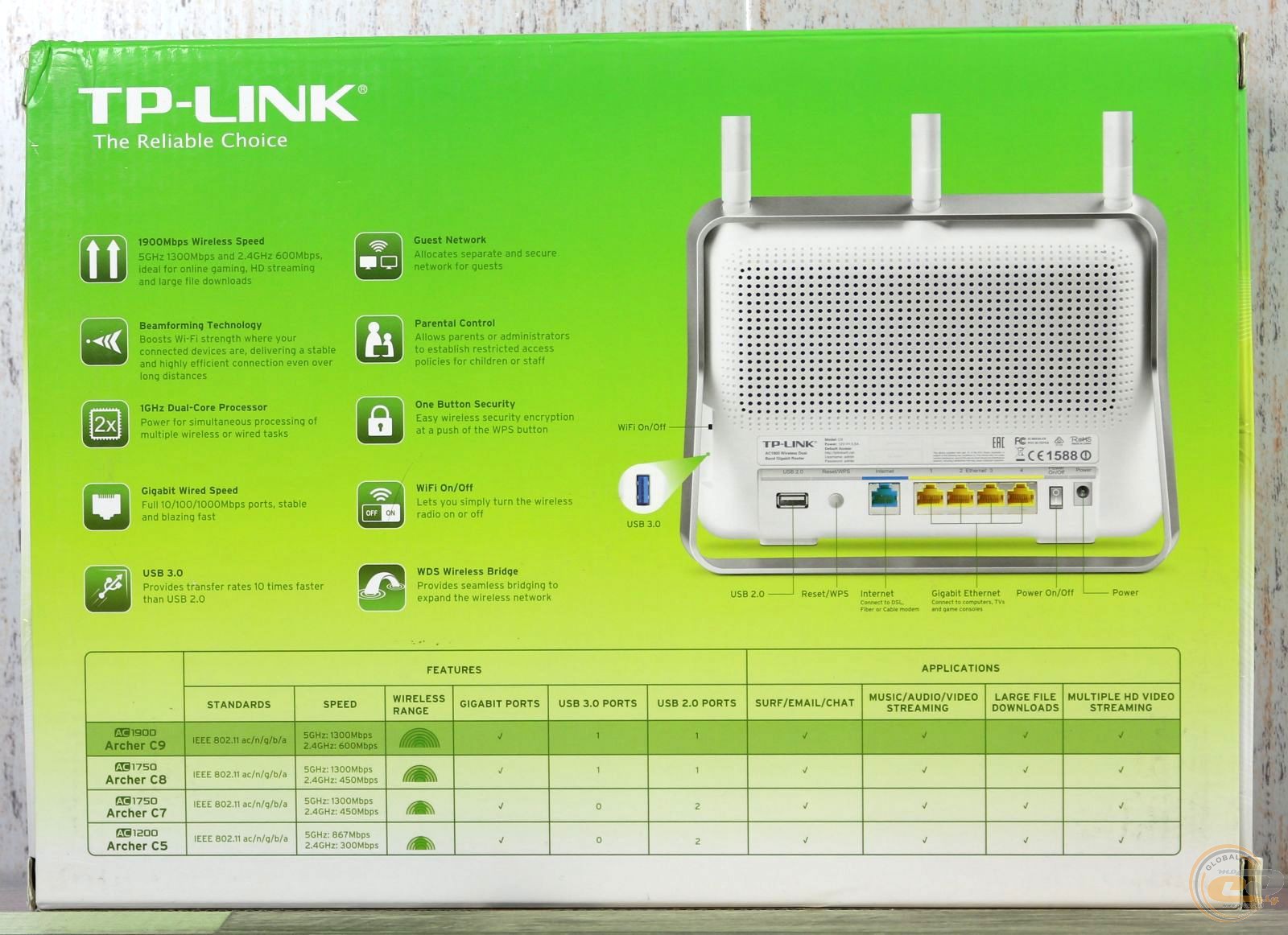
- AC1900 wireless speeds (1300Mbps + 600Mbps)
- Dual-band Wi-Fi (2.4GHz and 5GHz)
- Four external antennas for improved coverage
- Beamforming technology for concentrated and directed wireless signals
- Access point mode for wireless extension and coverage
- Easy setup and configuration using the Tether app or web interface
With its advanced features and robust performance, the TP-Link Archer C9 is an excellent choice for gamers, streamers, and anyone looking to upgrade their wireless network.