D-Link DIR-860L Firmware Update Tutorial: A Step-by-Step Guide
Introduction
The D-Link DIR-860L is a powerful wireless router that provides high-speed wireless connectivity and advanced features for a seamless online experience. However, like any other device, it requires regular updates to ensure it runs smoothly and securely. In this tutorial, we will guide you through the process of updating the firmware of your D-Link DIR-860L router to the latest version.Why Update Firmware?
Updating the firmware of your D-Link DIR-860L router is essential for several reasons: *- Improved security: New firmware releases often include security patches to fix vulnerabilities and protect your device from malware attacks.
- Enhanced performance: Firmware updates can improve the overall performance of your router, including speed and range.
- Compatibility: Regular updates ensure that your router remains compatible with the latest devices and technologies.
- Added features: Firmware updates can include new features and functionalities that enhance your online experience.
Step 1: Download the Firmware
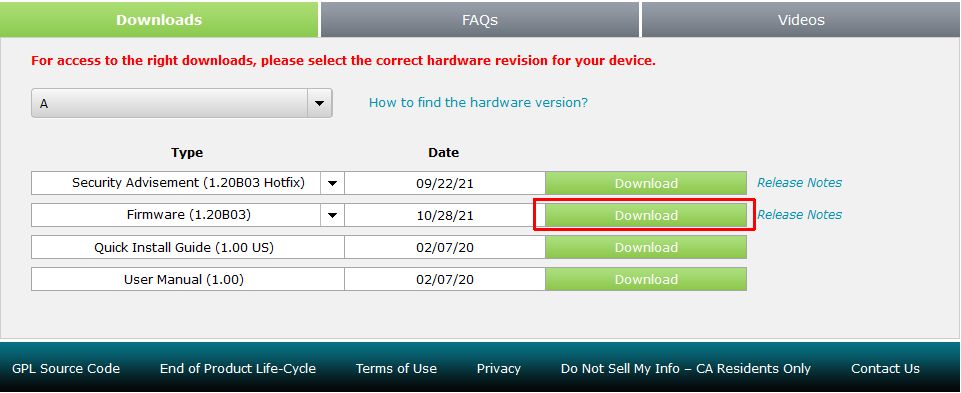
To update the firmware of your D-Link DIR-860L router, you need to download the latest firmware from the official D-Link website. Here's how to do it: *Visit the D-Link website and navigate to the support section for your router model.
*Click on the firmware tab and select the latest version available.
*Download the firmware file to your computer. Make sure to choose the correct version for your router model, or you may end up bricking your device
Step 2: Access the Router's Web Interface
Open a web browser such as Internet Explorer or Netscape.
*Type the IP address of your router in the address bar (192.168.0.1).
*Press Enter to access the router's web interface.
*Log in with your username (admin) and password (leave the field blank).
Step 3: Navigate to the Firmware Update Page
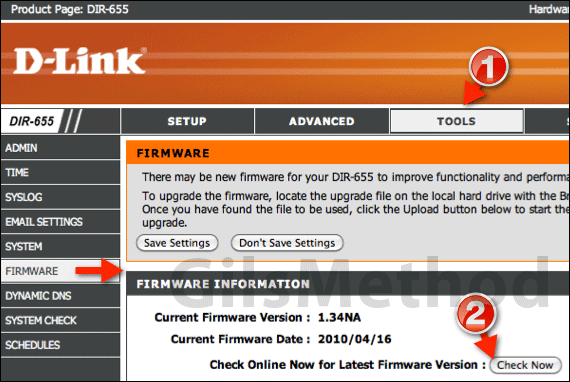
The web interface of your router will display a series of options. Here's what you need to do next: *Navigate to Maintenance and select the Update option.
*The router will begin the firmware update process. This may take a few minutes, depending on the size of the file and your device's processing speed.
Step 4: Complete the Upgrade
Once the firmware update is complete, your router will reboot, and you may need to log in again using the default credentials. *Log in to the router using your new credentials (factory reset if required).
*Verify that the firmware has been successfully updated by checking the current version on the firmware page.