Optimizing Wireless Network Settings for Streaming Devices
Streaming content has become an integral part of our daily lives, with services like Netflix, Hulu, and Amazon Prime offering a vast array of movies, TV shows, and original content. However, the quality of your streaming experience is heavily dependent on your wireless network settings and the devices connected to it. In this article, we will discuss the best practices for configuring wireless network settings for streaming devices to ensure a seamless and high-quality streaming experience.
Prioritizing Streaming Devices on Your Network
The first step in optimizing your wireless network settings for streaming devices is to prioritize them on your network. This involves setting up Quality of Service (QoS) settings on your router to allocate more bandwidth to your streaming devices. QoS settings allow you to prioritize specific types of traffic, such as video streaming, over other types of traffic, such as online gaming or web browsing.
To set up QoS settings on your router, you will need to access the router's web interface and look for the QoS or Traffic Management section. From there, you can configure the QoS settings to prioritize your streaming devices and allocate more bandwidth to them.
Using Multi-Link Operation (MLO) for Streaming Devices
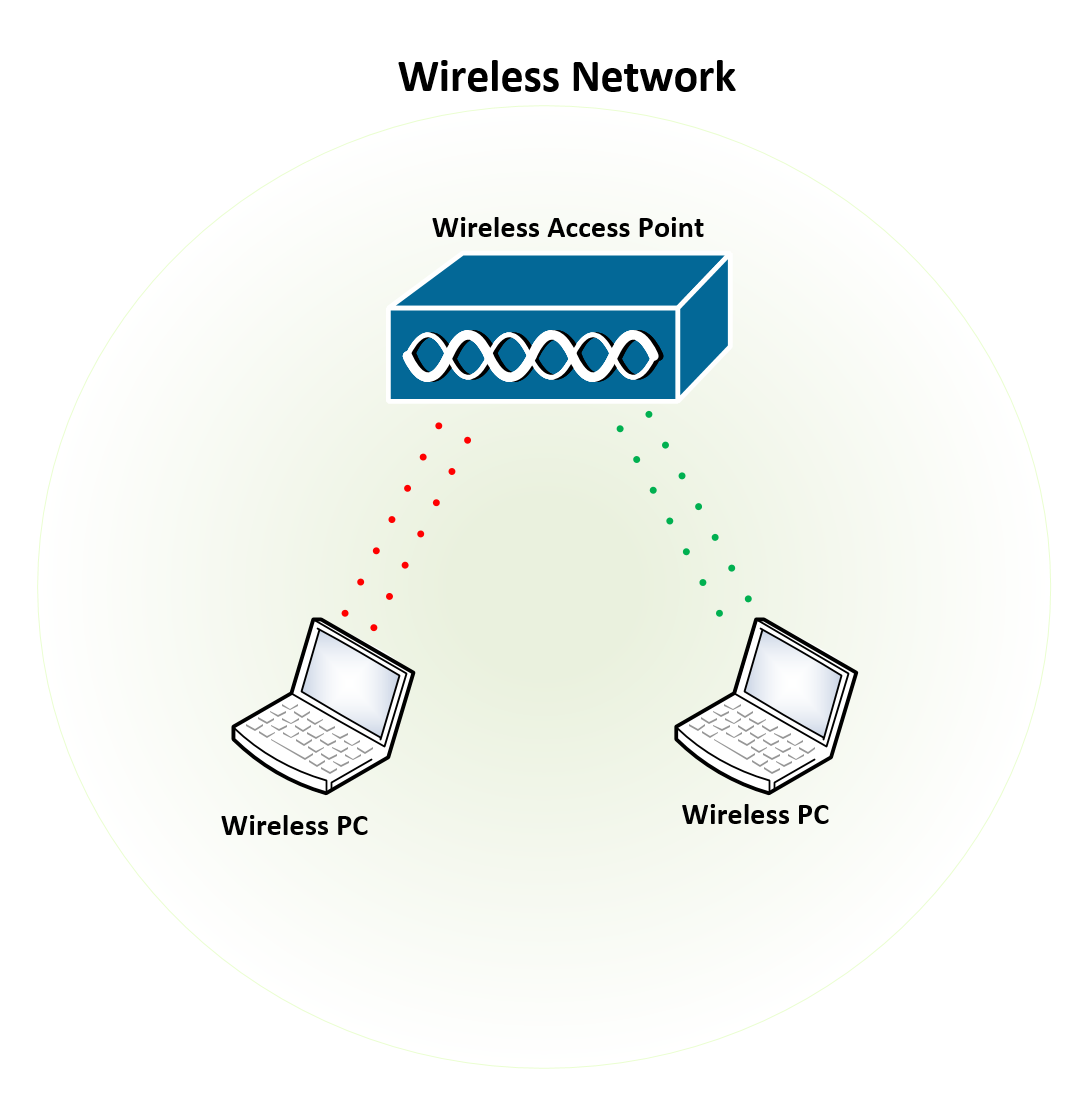
Multi-Link Operation (MLO) is a feature that is available on many wireless routers, including those that support the latest Wi-Fi 7 standard. MLO allows you to connect to multiple bands simultaneously, which can improve the performance of your wireless network and reduce interference from other devices.
When setting up MLO on your router, you will need to access the router's web interface and look for the Wireless Settings section. From there, you can configure the MLO settings to connect to multiple bands simultaneously and improve the performance of your wireless network.
Configuring Channel Width for Streaming Devices
Channel width is an important setting for wireless networks, as it can affect the performance and range of your network. For streaming devices, it is recommended to use a channel width of 80MHz or 160MHz, as these settings will provide a wider range and faster speeds.
To configure the channel width on your router, you will need to access the router's web interface and look for the Wireless Settings section. From there, you can configure the channel width to use a setting of 80MHz or 160MHz.
Using Network Switching for Streaming Devices
Network switching is a feature that allows you to switch between different networks automatically, which can improve the performance and reliability of your wireless network. For streaming devices, network switching can be particularly useful, as it can help to prevent disruptions and ensure a seamless streaming experience.
To set up network switching on your router, you will need to access the router's web interface and look for the Wireless Settings section. From there, you can configure the network switching settings to switch between different networks automatically.
Best Practices for Streaming Devices
In addition to configuring your wireless network settings, there are several best practices that you can follow to ensure a high-quality streaming experience for your streaming devices. These include:
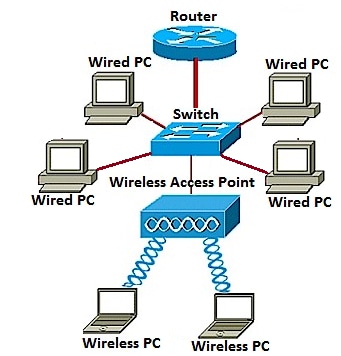
- Using a wired Ethernet connection for devices that are close to your router
- Placing your router in a central location to ensure a strong wireless signal
- Using a router with a built-in Quality of Service (QoS) feature
- Configuring your router's Quality of Service (QoS) settings to prioritize streaming devices
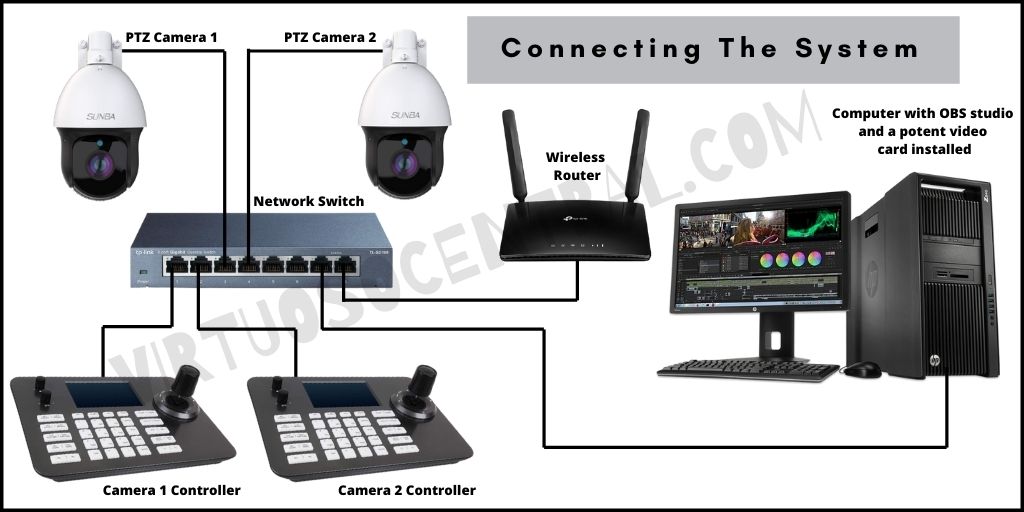
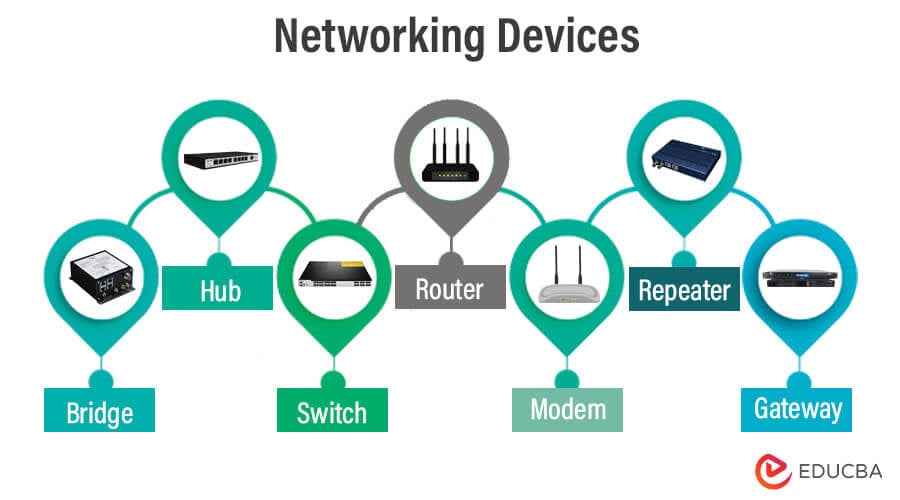
- Using a network switch to improve network performance and reliability
- Configuring your router to use Multi-Link Operation (MLO) for improved performance and range
- Configuring your router to use the latest wireless standard (Wi-Fi 7) for improved performance and range
Conclusion
Configuring your wireless network settings for streaming devices is crucial for a high-quality streaming experience. By following the best practices outlined in this article and configuring your wireless network settings correctly, you can ensure a seamless and high-quality streaming experience for your streaming devices.

![How to Optimize Your Streaming Setup? [Guide] - ComputingForGeeks](http://accoladewireless.com/wp-content/uploads/2015/05/wlan41.jpg "How to Optimize Your Streaming Setup? [Guide] - ComputingForGeeks")