Next Generation Wi-Fi Router Settings for Speed
In today's digital age, a fast and reliable Wi-Fi connection is essential for streaming, gaming, and working from home. However, with the rapid advancement of Wi-Fi technology, it can be challenging to keep up with the latest developments. In this article, we'll explore the world of next-generation Wi-Fi router settings for speed and provide you with practical tips to optimize your wireless network.
Understanding Next-Generation Wi-Fi Router Settings
Next-generation Wi-Fi routers, such as those with Wi-Fi 6E or Wi-Fi 7 capabilities, offer significantly faster speeds, lower latency, and improved connectivity. To unlock these benefits, it's essential to configure your router settings correctly. This includes choosing the right channel, enabled Quality of Service (QoS) settings, and utilizing advanced features like multi-band support.
Channel Selection for Optimal Speed
When it comes to optimizing your Wi-Fi router's speed, channel selection is a crucial aspect. With the increasing number of devices connected to the network, there's a higher likelihood of channel conflicts. By setting your router to use the optimal channel, you can minimize congestion and maximize speed.
- Use a Wi-Fi analyzer app to scan for nearby networks and identify the least congested channel.
- Configure your router to use the 5 GHz band for devices that require high-speed connectivity, such as 4K streaming and online gaming.
- Set your router to use the 2.4 GHz band for devices that require a longer range, but lower speeds, such as smart home devices.
Enabling Quality of Service (QoS) Settings
Quality of Service (QoS) settings allow you to prioritize specific devices or applications on your network, ensuring they receive the necessary bandwidth. This is particularly useful for real-time applications like online gaming, video conferencing, and streaming.
- Set up QoS rules to prioritize traffic from specific devices, such as gaming consoles or smart home devices.
- Configure QoS settings to limit bandwidth for high-bandwidth applications, such as video streaming or peer-to-peer file sharing.
Utilizing Advanced Features for Multi-Band Support
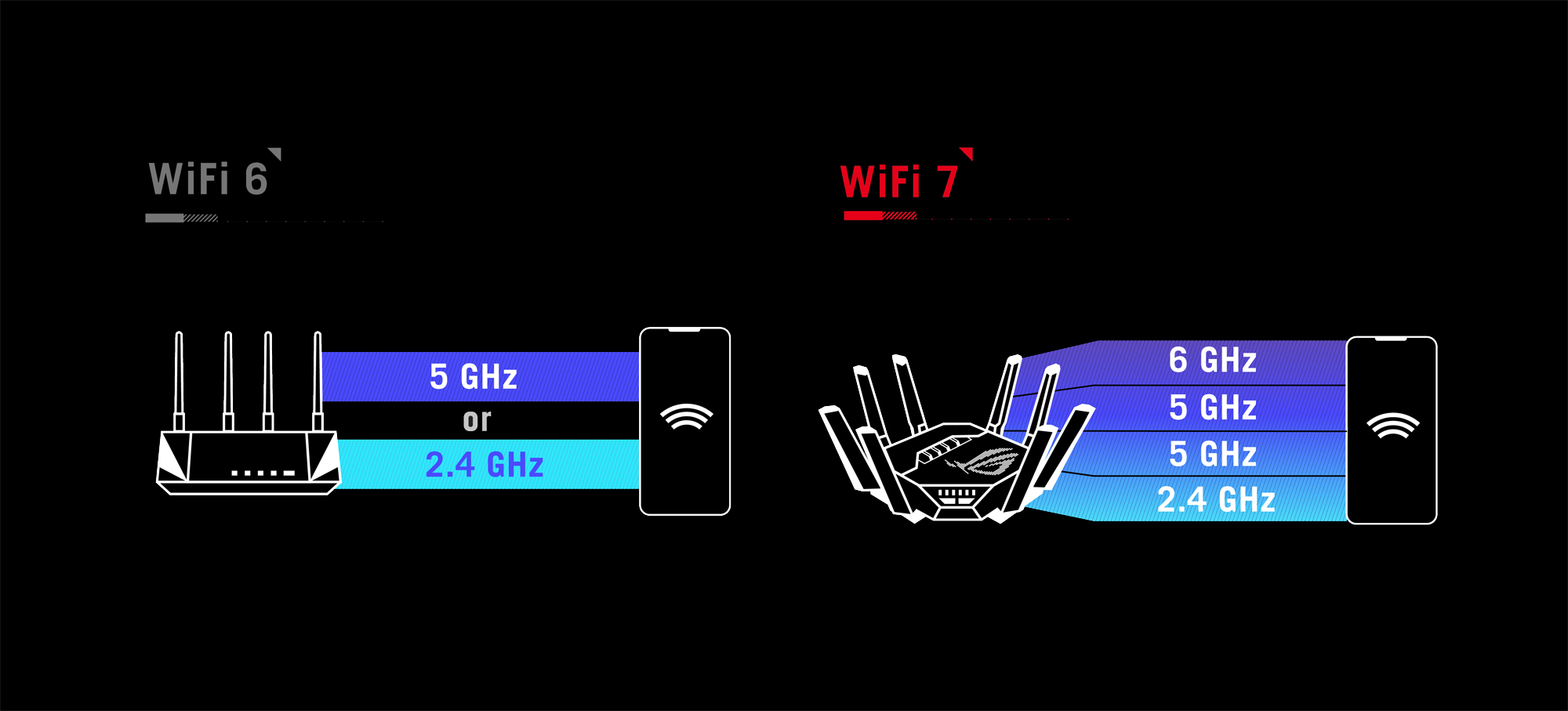
Next-generation Wi-Fi routers often come with advanced features that support multiple bands, such as 2.4 GHz, 5 GHz, and 6 GHz. By configuring these features correctly, you can optimize your network's performance and ensure seamless connectivity.

- Set up your router to use the 6 GHz band for devices that require the fastest possible speeds, such as 4K streaming and online gaming.
- Configure your router to use the 5 GHz band for devices that require high-speed connectivity, but also want to benefit from the increased range of the 2.4 GHz band.
Best Practices for Optimizing Your Wi-Fi Router's Speed
To get the most out of your next-generation Wi-Fi router, follow these best practices:
Conclusion
Next-generation Wi-Fi router settings for speed are a complex topic, but by following the tips and best practices outlined in this article, you can unlock the full potential of your wireless network. Remember to choose the right channel, enable QoS settings, and utilize advanced features like multi-band support to optimize your network's performance.
Top Picks for Next-Generation Wi-Fi Routers
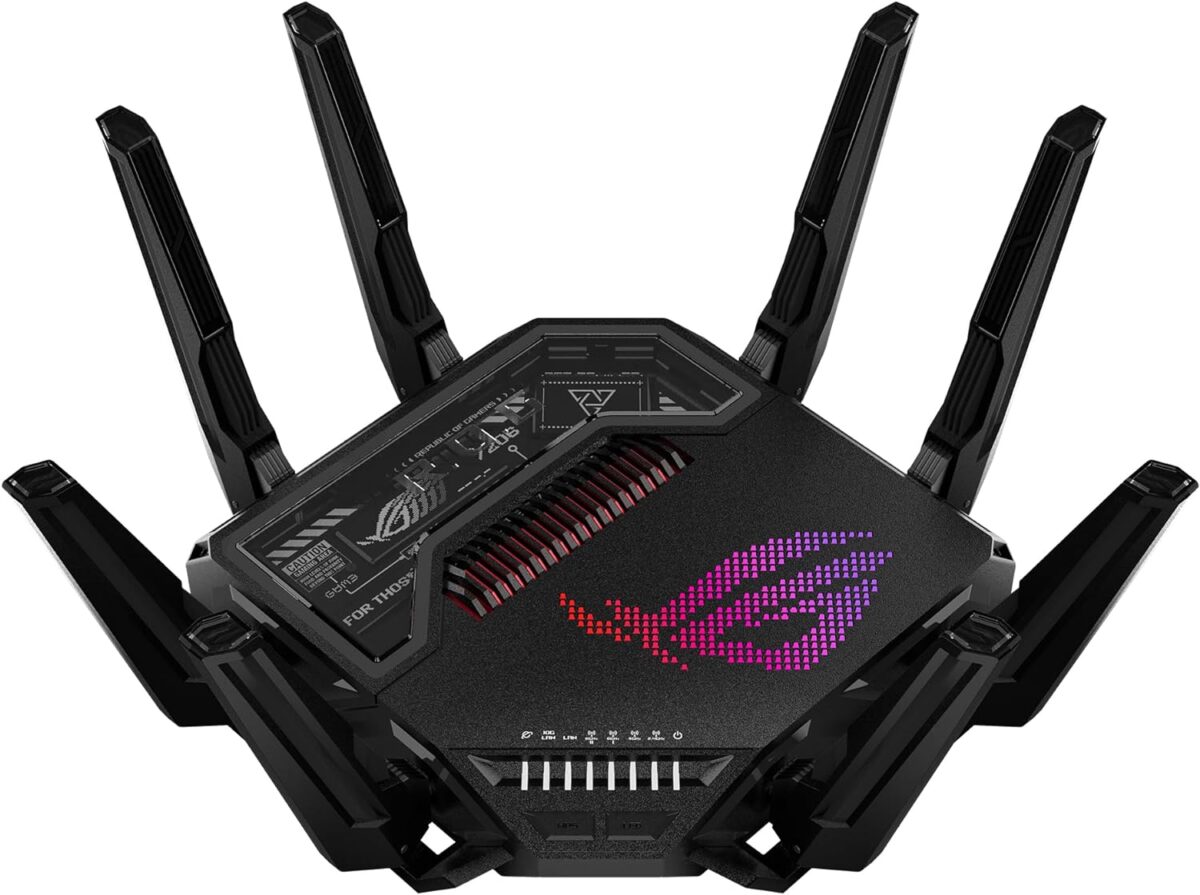
Here are some top picks for next-generation Wi-Fi routers that offer exceptional speed, range, and performance:
TP-Link Archer BE900: A Wi-Fi 7 router with four bands, eight networking ports, and two USB ports.
Google Nest Wi-Fi Pro: A Wi-Fi 6E router with reliable coverage and fast speeds.
Nighthawk Routers: High-performance Wi-Fi routers with advanced security features and power.